VMware Discovery Event Monitor Reference Guide
VMware Discovery Event Monitor
Detects and automatically onboards Vmware VMs and hosts to your monitoring configuration.
Overview
The VMware Discovery Event Monitor detects VMware VMs and automatically adds them to a device group that you specify.
Use Cases
- Automatically detecting new VMs and adding them to your monitoring configuration
Monitoring Options
This event monitor provides the following options:
Device Group
Specify the device group you'd like new devices to be added to.
Pause previously discovered devices if they are no longer found
This option will pause devices that were previously discovered if they are no longer present when the event monitor runs again.
Move previously discovered devices if they are no longer found
This option will move devices that are no longer found to a device group of your choosing.
Remove previously discovered devices if they are no longer found
This option will automatically remove devices from FrameFlow if they are no longer discovered by this event monitor.
Options
Use this option to either add only virtual machines, only hosts, or both virtual machines and hosts.
Ignore discovered devices if an existing device's name resolves to the same IP address
This option lets you ignore devices the event monitor picks up if a device that's already in your FrameFlow configuration has the same IP.
Ignore
Use this section to list any internal/external IP address or instance id you wish NOT to be added as a network device. Each entry must be on a separate line.
Authentication and Security
The account that you specify must have view permissions for the VMware REST API or have admin rights.
Protocols
Data Points
This event monitor generates the following data points:
| Data Point | Description |
|---|---|
| Count of Detected Devices | The number of devices detected by the event monitor. |
Tutorial
To view the tutorial for this event monitor, click here.
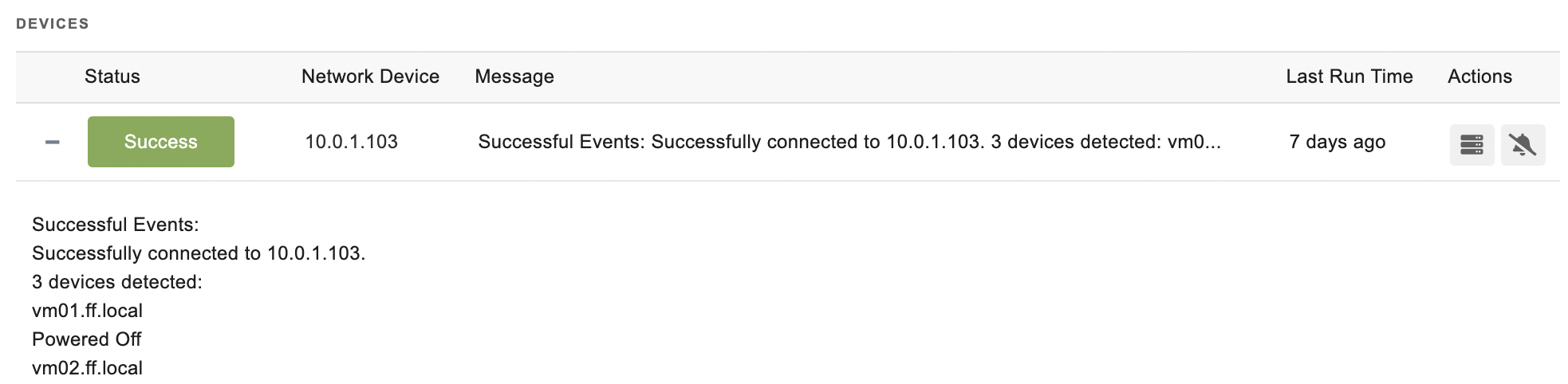
Sample Output
Comments
Add a comment