Technical Resources
Notification Profiles
Overview
Notification profiles are sets of notification actions grouped under a name that you choose. You can apply these profiles to your event monitors, and the actions you choose will be performed when the event monitor generates an alert. When you update a notification profile, all event monitors using the profile will automatically pick up the changes.
How to Configure a Notification Profile
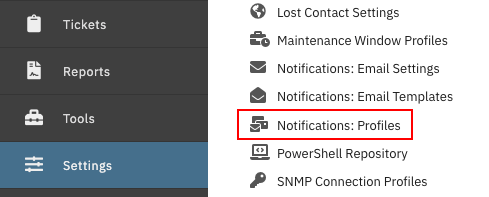
To start, go to Settings > Notifications: Profiles.
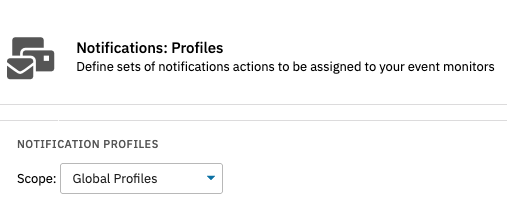
Choose the scope for the profile, either global, local, or remote node. Local profiles can only be applied on your local FrameFlow instance. In multi-site mode, your remote nodes will appear by name in the Scope list. Profiles under your remote nodes can only be applied to said nodes. Global profiles can be applied to your main console and remote nodes.
Then, click "Add New Profile" and enter a name for your profile. Under "Status Control", you can choose the number of non-success events that will cause the notification profile to trigger.

Notification Actions
Notification actions are the events in your notification profile. When an event monitor generates an alert, the notification actions in the assigned profile are processed. The default notification action is "Write to Event History", which records the alert in the Event History section of FrameFlow.
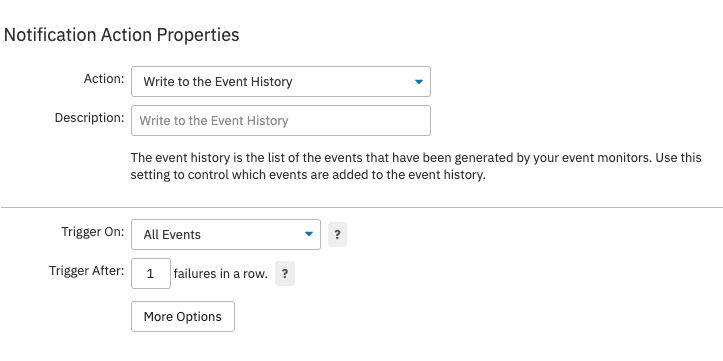
Click "Add Action" to add more notification actions to your profile. Edit or remove existing actions by clicking on the dropdown menu to the right of each action. Once you've added the desired notification actions, click "OK" to save your profile.
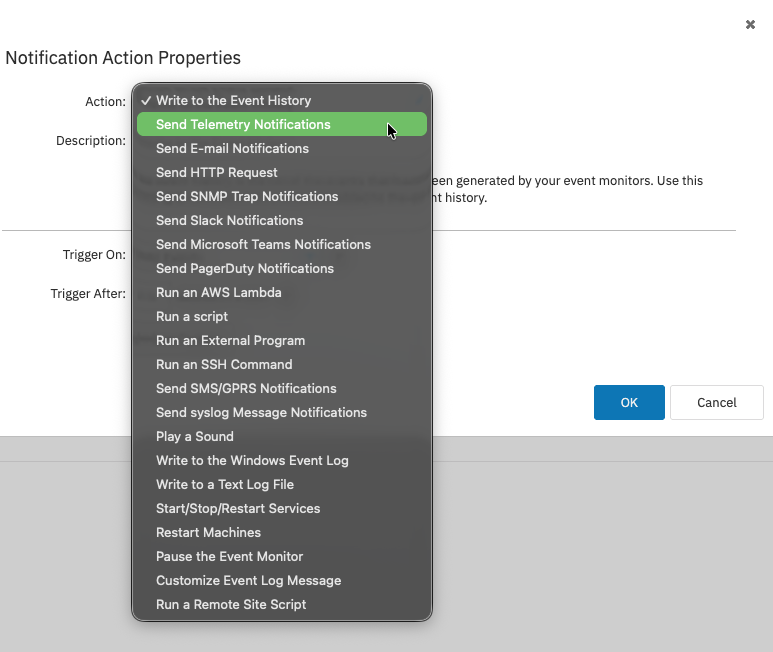
You can combine as many notification actions as you need. With multiple notification actions selected, FrameFlow will execute them in the order that they're listed in your notification profile. To learn about all the notification actions FrameFlow provides, visit the notification actions library.
Assigning Notification Profiles to Your Event Monitors
Now that you've created a notification profile, let's learn how to add one to an event monitor. Go to your event monitor's Settings section. Scroll down until you see the section called "Notifications and Actions". From there, you can choose the profile you just created. Scroll down further to save your changes. Now, when your event monitor gets an alert that fits the filtering criteria on the notification profile, it will perform the notification actions that you've chosen.