Technical Resources
Notification Actions Library
Overview
Notification actions are events that are triggered by FrameFlow in response to an alert from an event monitor. They allow you to send alerts via email, SMS, Microsoft Teams, PagerDuty, and more. You can also respond to events proactively, for instance, by running PowerShell scripts or calling REST APIs. Notification actions are assigned to a notification profile, which is then assigned to an event monitor. To learn how to create a notification profile, view this notification profile tutorial first. There are many other notification actions available; see the complete list below.
Path to Notification Actions for Event Monitors
In the settings section of your event monitors, scroll down and you'll see a section called "Notifications and Actions". This is where you can add notification profiles you've created to the event monitor. To learn how to create a notification profile, view this notification profile tutorial first.
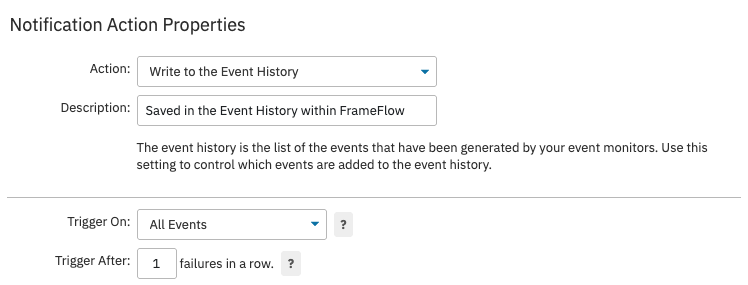
Write to Event History
"Write to Event History" is the default option that FrameFlow offers. When this notification action is enabled, FrameFlow will record the alert in the Event History section of FrameFlow and in Headquarters.
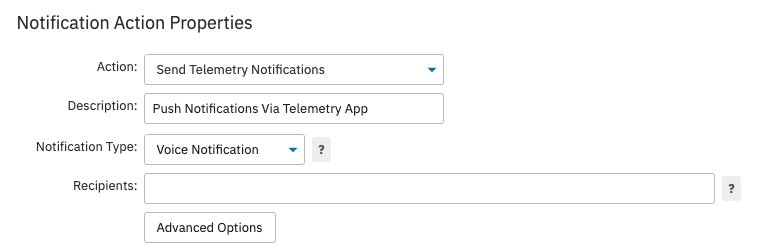
Send Telemetry Notifications
FrameFlow has a mobile app called Telemetry. Users with a subscription license get this feature for free. For perpetual users, it's available as a paid add-on service. Once configured, you can receive push notifications on your mobile device from the Telemetry app, voice calls, or SMS texts.
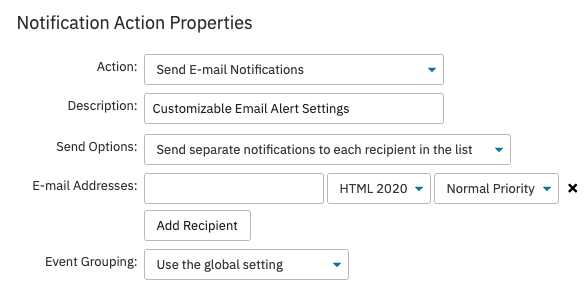
Send Email Notifications
FrameFlow can send notifications via email to one or more members of your team. Select this notification action and enter a comma-separated list of email addresses that will receive alerts. You can choose to send one email with each contact included or separate emails to each contact.
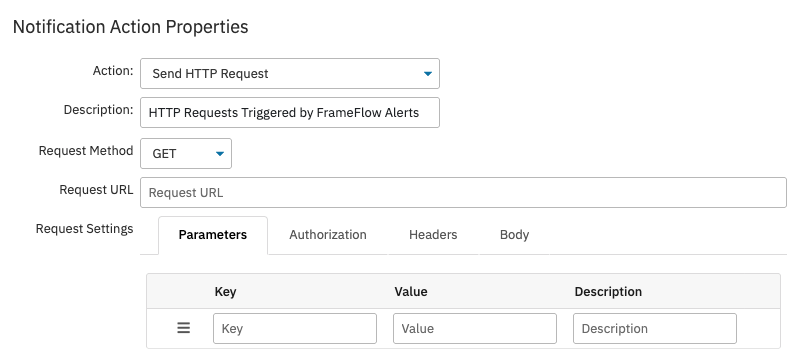
Send HTTP Request
You can use notification actions to send an HTTP request using cURL on Windows, triggered when an event monitor with that notification profile receives an alert. You'll need to enter the request method, the request URL, and configure settings for the request itself.
Send SNMP Trap Notifications
This option sends a trap notification via SNMP to a central server, the SNMP manager. We also monitor SNMP traps using the SNMP Trap Event Monitor.

Send Slack Notifications
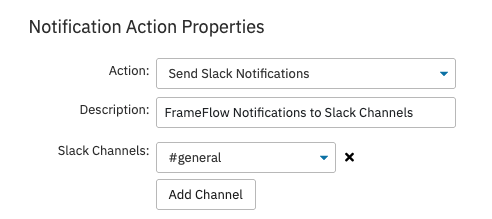
FrameFlow integrates with Slack and sends event monitor notifications to your Slack channels. Once you've integrated with Slack, FrameFlow will become a Slack app that you can add to your channels. From there, you can also pin your Slack channel feeds to your dashboards so you can keep that information handy within FrameFlow.
Send Microsoft Teams Notifications
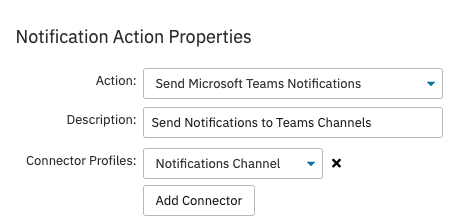
FrameFlow can also be integrated with Microsoft Teams. Like with Slack, it can send FrameFlow alert notifications to your Teams channels. Profiles with the Microsoft Teams integration can then be added to your event monitors and will post alerts to the connected Teams chats.
Send PagerDuty Notifications
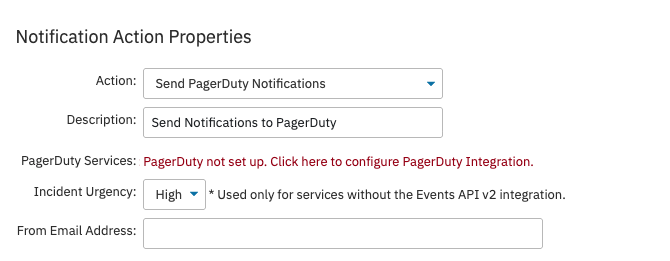
FrameFlow also has integration capabilities with PagerDuty. Once integrated, you'll be able to view FrameFlow alerts as PagerDuty incidents. Without setting up integration, you'll receive the error message you can see below next to "PagerDuty Services".
Run an AWS Lambda
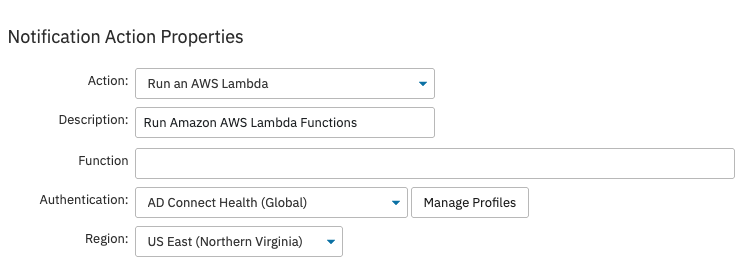
You can run AWS Lambdas by selecting that option from the list of notification actions. You'll first need an authentication profile that grants AWS Lambda permissions. From there, specify the function to run and enter the corresponding AWS region.
Run a Script
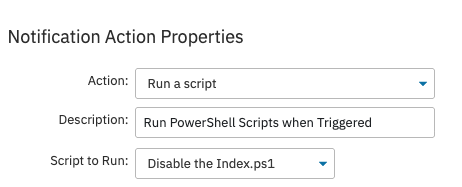
A FrameFlow alert can be configured to trigger a PowerShell script to run. With some PowerShell experience, you can integrate with FrameFlow's alerting engine to run simple or advanced PowerShell scripts. Learn more about FrameFlow's integration with PowerShell here.
Run an External Program
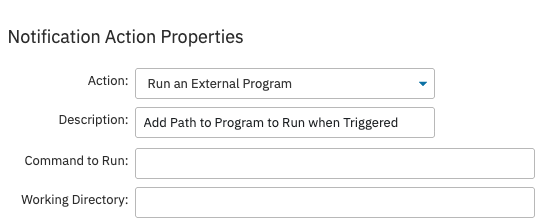
FrameFlow alerts can also trigger external programs to run. When you select this notification action, you'll need to enter the path to the program that you want to run when this action is triggered. The path should point to an executable and you can specify command line parameters. To run a batch file, run it through the Windows command line using the following syntax: cmd /c c:\path\batchfile.bat'
Run an SSH Command
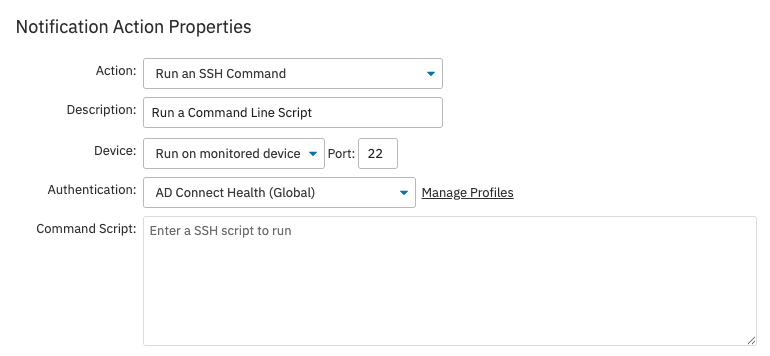
You can run an SSH command line script on the monitored device or another device connected to FrameFlow. Specify the device (the one being monitored or one that you select), the port number, and authentication for the device you want to run the command on. In the command script field, enter the SSH script that you want to run.
Send SMS/GPRS Notifications
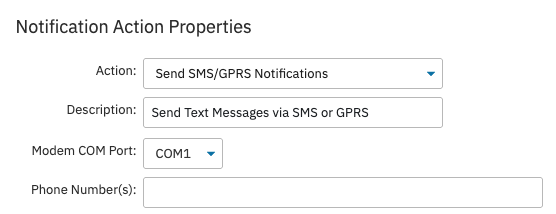
FrameFlow can send alerts as texts via SMS or GPRS. Enter a comma-separated list of phone numbers you want to receive the text alerts. In order to send SMS notifications, an SMS/GPRS modem must be installed in the machine where the monitoring service is running.
Send SysLog Message Notifications
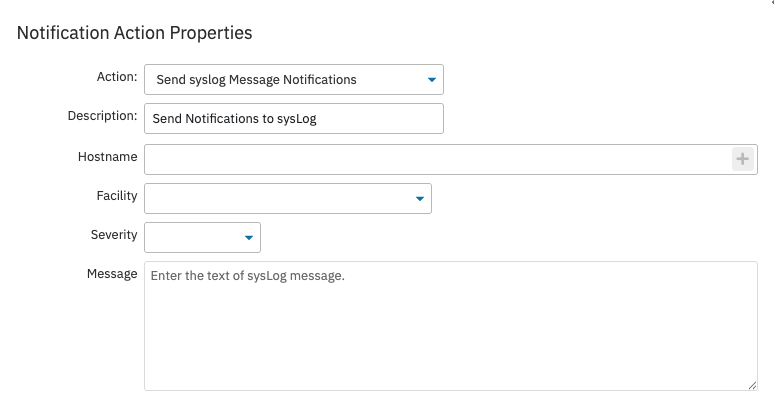
This option will send a sysLog message notification. Use %%syslogfacility%% and %%syslogseverity%% tokens to incude facility and severity information in your messages.
Play a Sound
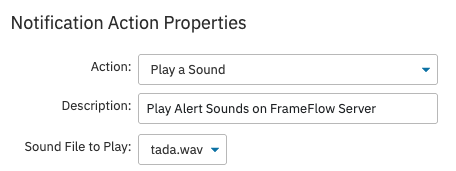
FrameFlow can play a sound on the server on which FrameFlow is running, signalling to users that there's a new alert. This is helpful if your team members have multiple tabs open at once when running FrameFlow. To add your own sound files, just drop them in the Sounds folder found under the main installation folder. Note that sounds will be played on the machine where the monitoring service is running.
Write to the Windows Event Log
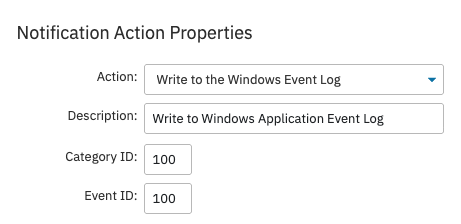
This option will write events to the Windows application event log using the category ID and event ID that you specify.
Write to a Text Log File
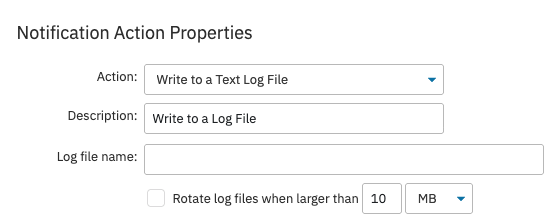
Another option that can be triggered by an alert is writing to a text log file. Enter the path to a log file and all matching events will be recorded there in CSV format. With the option to rotate log files enabled, files will be renamed with a numeric extension after they reach the specified size and a new file will be started.
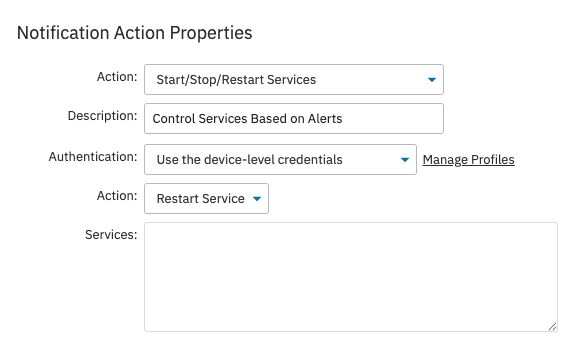
Start/Stop/Restart Services
FrameFlow can even start, stop, or restart services when an event monitor with this notification action gets an alert. You'll need to add authentication, choose the desired action (start, stop, or restart), and enter the names of the services that you want to perform the action on. Specify multiple services by entering them each on a new line. Use this action to control services based on event monitor results. For example, if a web server has stopped responding, you can use this action type to restart it.
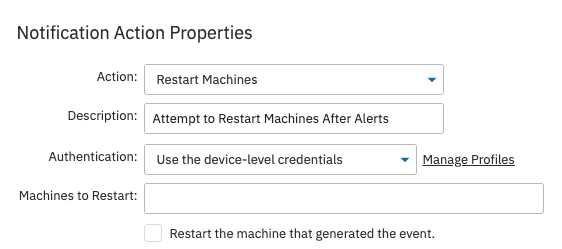
Restart Machines
Notification profiles with this action can restart your machines, including but not limited to the machine that generated the alert. Enter a list of machines, separating multiple machines with commas. An attempt will be made to restart each machine listed.
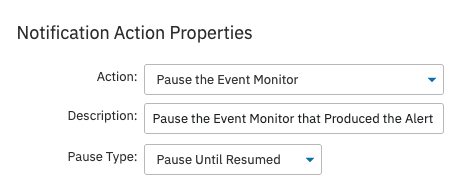
Pause the Event Monitor
With this notification action, you can pause the event monitor that generated the alert. You can pause an event monitor until it's manually resumed or pause it for a specified amount of time.
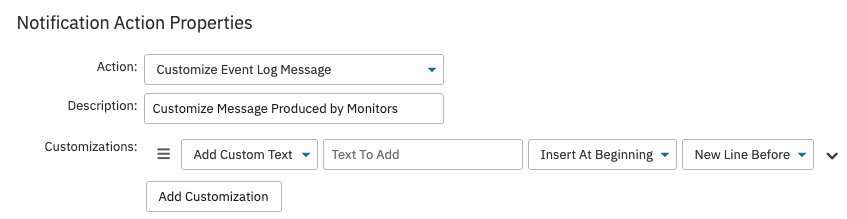
Customize Event Log Message
This option lets you customize the message generated by your event monitors. You can choose to add new text before or after the default alert message. You can also use this notification action to find and replace words or phrases in the event text. The final customization option is to run a script, which lets you pick a script from the scripts subfolder in your installation folder. The script needs to have a function called Customize that takes one parameter. The action will run the script and call that method, passing in the current event message. The action then takes whatever is written to standard output and uses that as the new event message.
Run a Remote Site Script
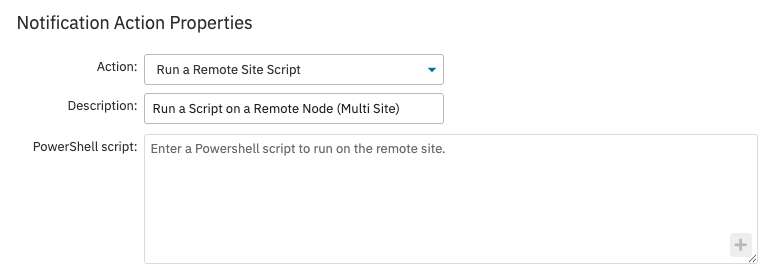
This option lets you run a script on a remote node, for users running in multi-site mode. Enter the PowerShell script that will be run on the remote site in the provided field. FrameFlow runs the script on the remote site that caused the notification to trigger. Most notification actions get processed on the master console, but this one lets you have access to things on the remote node.
Running Multiple Notification Actions
You can add more than one notification action to a notification profile. In this case, actions will be performed in the order that you enter them in the notification profile.
Filtering
For each of these notification actions, there are additional filtering options available to customize actions further. Click "More Options" to view the full list of filtering options. They let you add extra conditions that need to be met in order for your notification action to trigger.
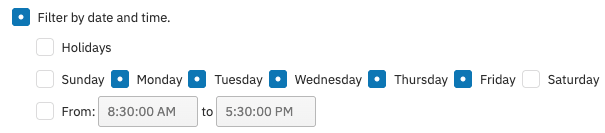
The option to filter by date and time lets you specify days of the week and time periods that the notification action will trigger during. You can exclude holidays, weekends, or overnight hours to ensure that actions don't happen when nobody's there to supervise them.
The next three filtering options control what happens with your notification actions during error events. The first one lets you exclude text about checks that have passed before the error event. The second one will convert your error event into a success if pings to the originating device fail. The last option does the same as the second one, but lets you specify the name of a different device to act on instead of the originating device.

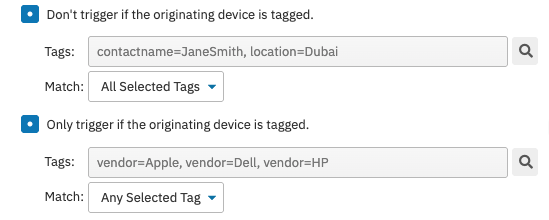
Next, there are two filtering options based on tags. When you expand the check boxes, you can enter tags in the fields of each option that FrameFlow will check against. The first option will prevent the action from triggering if the originating device has the selected tags. You can configure this option to trigger when the device matches any of the tags or only trigger if all selected tags are present. The second option works the same way, but will ONLY trigger if the tags match.
The final filtering option will stop processing more actions when the notification action is triggered. Users often check this box in combination with a schedule to make sure email notifications and other alerts go to the correct on call person.
