Technical Resources
Installing the REST API
About the REST API
FrameFlow's API gives you access to the monitoring engine using common development tools and scripting languages. It provides methods for managing devices, configuring event monitors, accessing graph data, accessing events, and much more. The API is especially useful for integrating with your existing IT systems. Some examples include feeding monitoring data to your corporate dashboards, integrating with provisioning and deployment tools, and developing custom interactions. We recommend using the REST API to get easy web-based access to your monitoring configuration and data.
System Requirements
Before proceeding, make sure that you have all of the required components installed:
- Windows Server 2012 R2 or later
- 1 GB RAM or more
- 1 GB Disk Space or more
- IIS Web Server Installed
1. Install ASP.NET Core 6.0 Runtime Windows Hosting Bundle. Make sure to pick the hosting bundle link from the following: [Download Link]
2. Open the IIS Manager on the system where the API is installed.
3. Create a new IIS Application called "ffapi", setting the path of the application to the API installation folder.
4. Go to the Advanced Settings for the IIS application that you created and make note of the Application Pool it is assigned to.
5. Ensure the "Managed Pipeline Mode" is set to "Integrated".
6. Ensure that "Enable 32-Bit Applications" is set to "False".
7. Open a web browser and navigate to "http://localhost/ffapi/docs/".
8. After a short delay, the REST API documentation will appear along with options to test each method in the API.
Testing the API
1. Open a web browser and navigate to "http://localhost/ffapi/docs/".
2. Find the Authentication Methods section, near the top of the docs.

3. Click on the green part of the row to expand it.
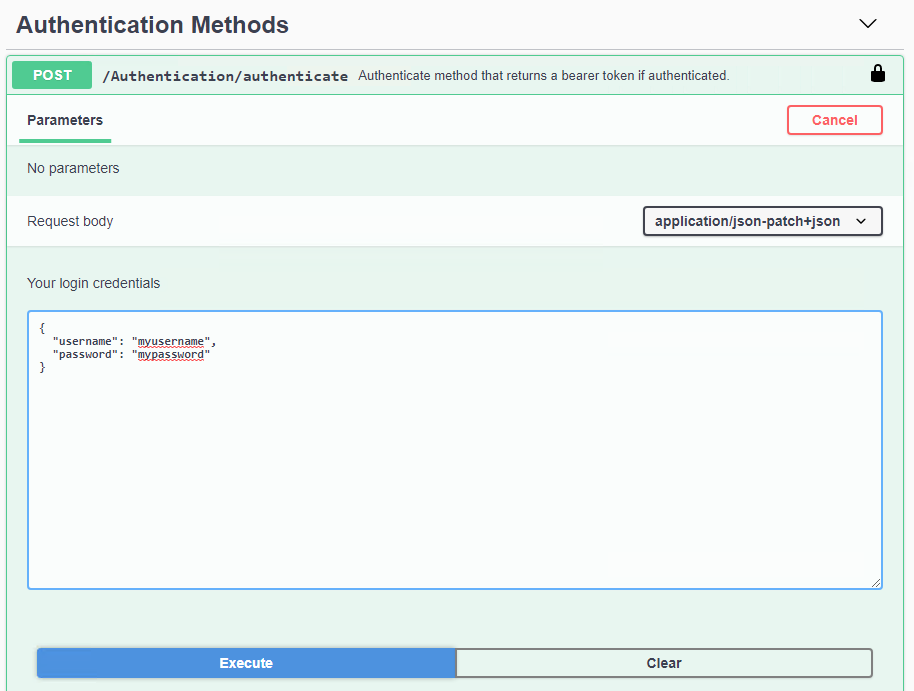
4. In the request body, enter the user name and password for your FrameFlow API user as defined in the Login and Security settings of the FrameFlow interface.
5. Press the Execute button.

6. In the Window that appears, copy the token value that was generated. Copy only the token value, not the double quotes around it.
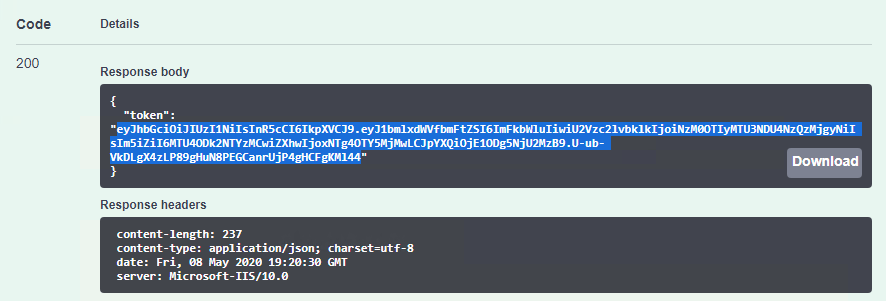
7. Press the Close button to return to the docs page.
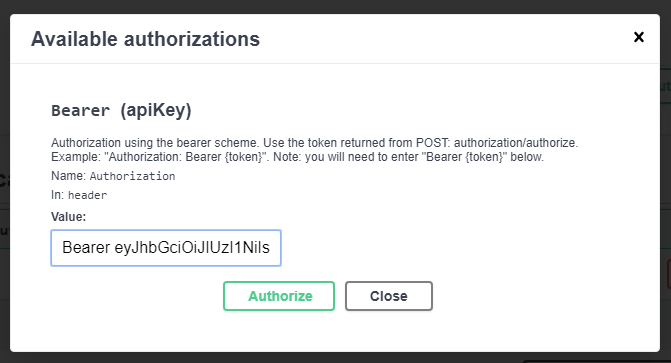
8. Scroll to the top of the docs page and press the Authorize button.

9. In the text box of the window that appears, enter the word "Bearer" followed by the full token and press the Authorize button.
10. Scroll down to find the Device Group methods section and select the GET /sites/{siteId}/devices/groups method.

11. For the site identifier value use "1".
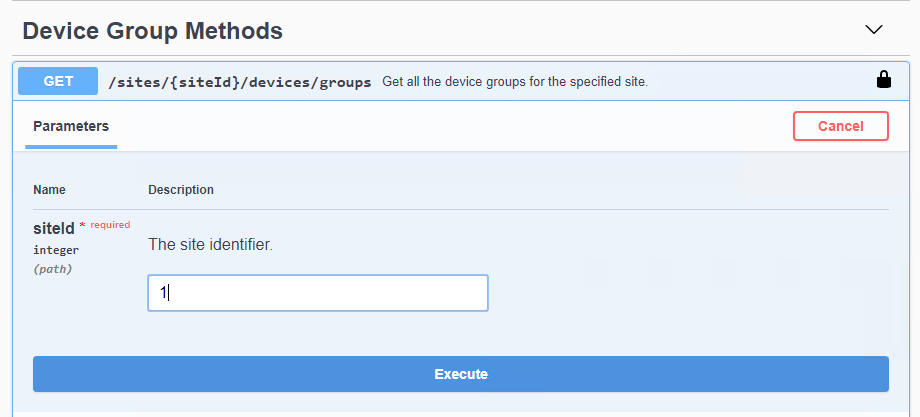
12. Press the Execute button.
13. Verify the list of device groups that was returned.
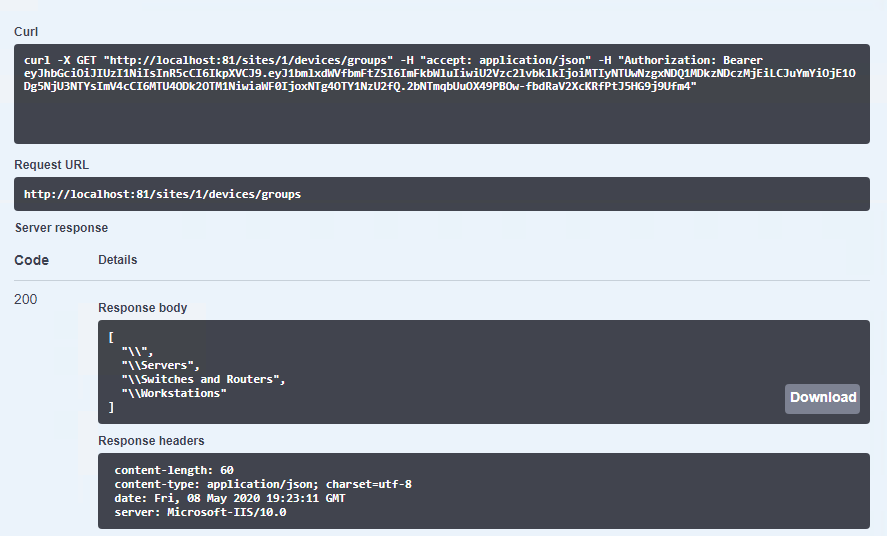
You have now verified that the REST API is working. You can proceed to test the other API methods or make the equivalent calls using cURL or your preferred software development language.