Technical Resources
Failover for Your Main Server and Remote Nodes
What is FrameFlow Failover?
When you purchase a FrameFlow license, it comes with the rights to install a second FrameFlow copy on another machine to act as a failover. Periodically, the failover will synchronize with your main FrameFlow installation and store a local copy of your configuration. This failover feature ensures that even in the event of an outage on your primary server, FrameFlow can keep monitoring your important IT assets. There are two types of failover: main site failover and remote node failover. This article will explain both and teach you how to set them up.
This article is also available in video format.
Why Should I Configure a Failover Server?
Without a FrameFlow failover server configured, all monitoring would cease during an outage, maintenance period, or other failure. For customers who are monitoring crucial equipment, this could translate to a serious loss of money or time. Keeping a failover server ensures against such problems.
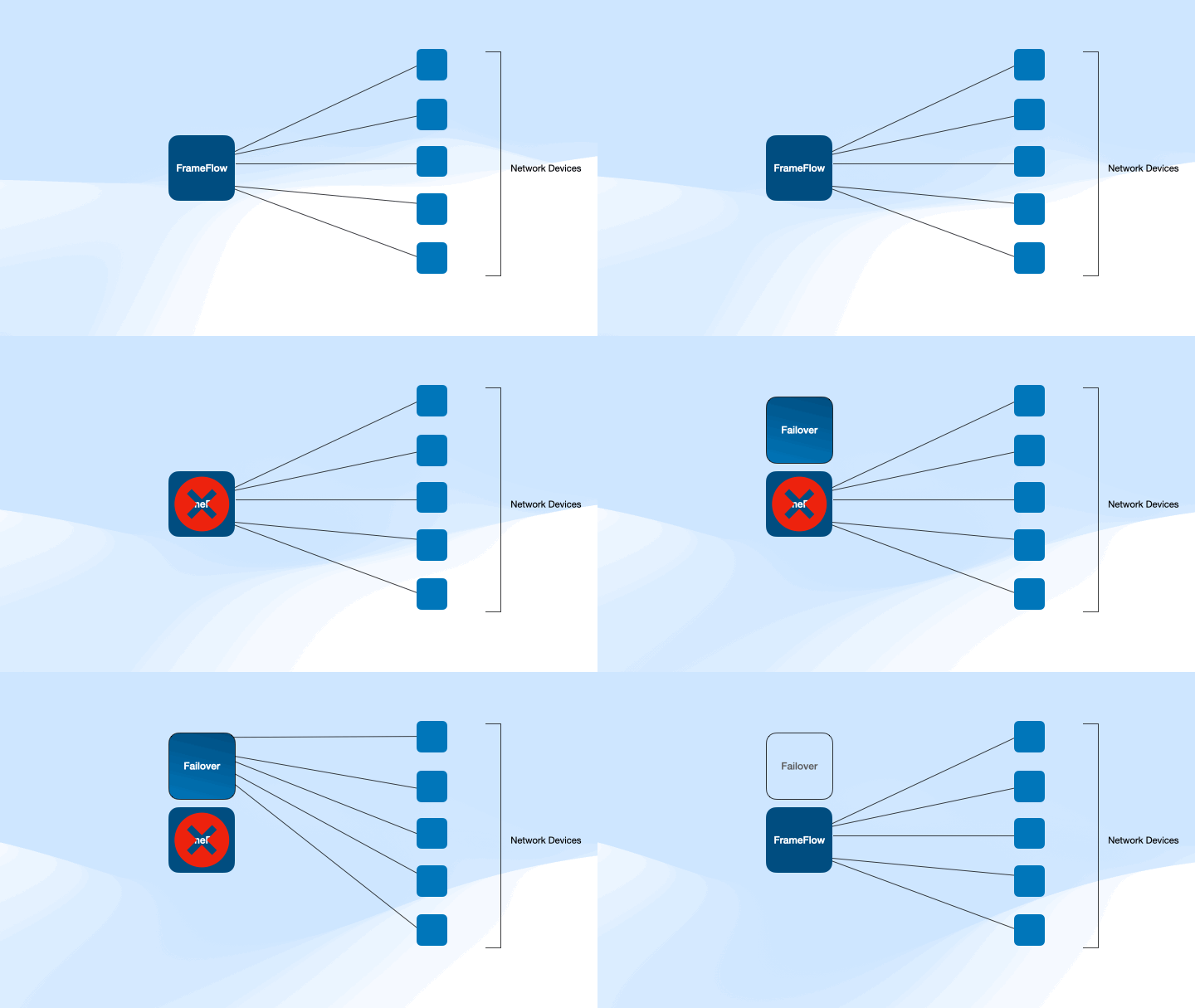 Diagram of Failover
How to Configure Main Console Failover
To create a failover server for your main console, start with a clean FrameFlow installation on a different system than your primary. Go to Settings, then Failover Settings. Check the box titled "This installation is a failover server". You will then be prompted to enter the URL of the primary server. This allows the failover server to synchronize with the primary. To authenticate with the primary server, you will be asked for your username and password as well. Specify the credentials for one of the accounts in the Login and Security Settings of your primary monitoring server. Make sure the account you choose is a member of a security group with the Failover Node role.
 Failover Settings
The following options let you set the time between synchronizations in seconds and the heartbeat interval, also in seconds. The heartbeat interval controls how often the failover server will check if the primary is up and running. If it is unable to connect, you will be notified immediately that your monitoring configuration is now running in failover mode. As you can see, failover will check every few seconds to ensure your primary FrameFlow instance is still up and running, and if it isn't, it can take over in seconds. This means you can seamlessly continue monitoring even in an outage on your primary.
When in failover mode, a banner will appear to indicate when the last connection to your main monitoring server was established. When the failover server is once again able to connect to the primary server, the failover server will go back into its dormant mode and resume checking your primary server for the next time it may need to take over. The data it gathered during failover will be retained locally on the failover server and can be accessed at any time by logging into that instance.
How to Configure Remote Node Failover
When operating in multi-site mode, if a remote node goes down, you'll receive an alert about it. However, until connection is re-established, you won't receive data from your remote node. FrameFlow also offers a failover option for your remote nodes to avoid this problem.
Remote node failover setup works the same way as main console failover. When you run the setup program on your remote node, make sure to select the "Remote Node" installation type from the dropdown menu.
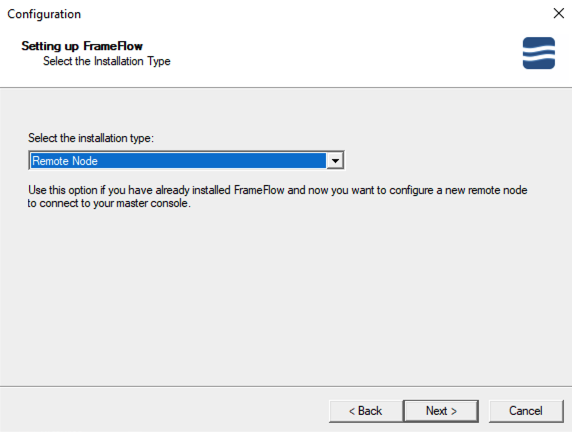 Remote Node Failover Setup
You also must check the box on the following screen to indicate that this instance is a failover node. Enter the exact same site name as your main remote node. Your remote node failover server will get all the same event monitors, devices, and data that are on the original remote node. In the event of an outage, OS update, or other lost contact event on the main remote node, the remote node failover will take over monitoring. Once the main node comes back online, the failover will go back to its dormant state. You can configure a failover instance for each of your remote nodes to combat potential outages.
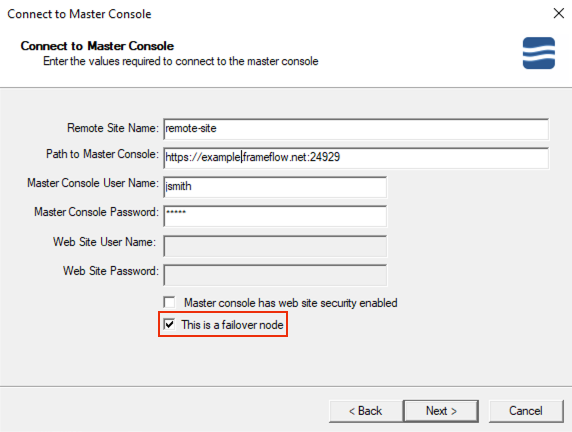 Remote Node Failover Checkbox
Main Site + Remote Node Failover
What happens if your main FrameFlow instance goes down in a multi-site configuration? In this event, monitoring will transfer over to your main failover server and your remote nodes will begin to call home to the failover server instead. Monitoring and data will continue on the failover server, including updates from your remote nodes, until connection with the primary is re-established. The remote nodes will automatically call home to the primary server again once it's back online.
Lost Contact Settings: Notifying Your Team about Failover Events
In your master console's Settings section, there's a subsection called Lost Contact Settings. This is the hub that controls notifications that will be sent out if your primary console goes down. Here, you can choose to receive notifications when the master console enters or exits failover and when contact is lost or re-established with the failover server. It's important to configure these settings alongside configuring failover, especially the failover server contact settings, as this is the only way to get notified if the failover server goes down.
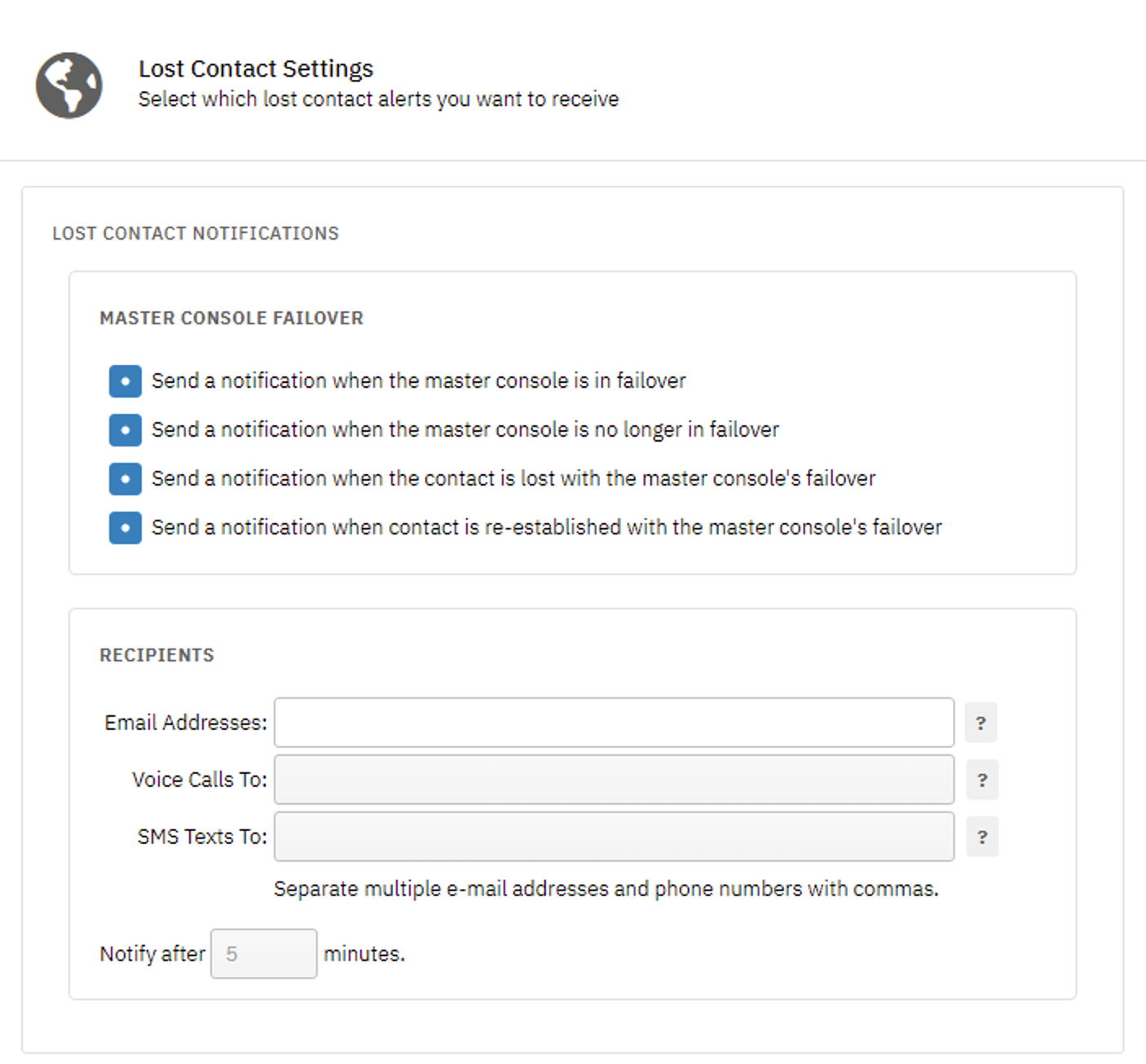 Master Console Failover Settings
For users with multi-site mode enabled, you'll see more lost contact settings for your remote nodes. These settings can also be found in Settings > Lost Contact Settings on the master console. You'll have options to get notified about lost and regained contact with any remote node as well as options to get notified about remote node failover.
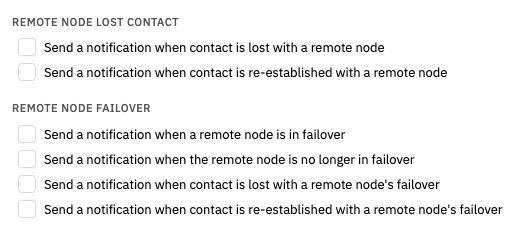 Additional Remote Node Settings
There are plenty of different ways FrameFlow can notify you of these events, including by phone call, email, SMS texts, or any combination of those three. You can specify multiple email addresses and phone numbers in the provided fields, just make sure to separate each with a comma. These settings help you make sure that key members of your team will always be notified in a lost contact scenario.
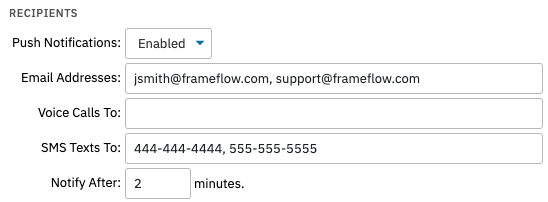 Contact Settings
Summary
As you can see, setting up a failover instance can save your organization crucial time in the case of an outage. Make sure to set up a failover server so that monitoring can continue seamlessly after outages, updates, maintenance, and other interruptions.